
Gain timely investment insights on:
By subscribing, you agree to receive research insights and marketing communications from us, and to the terms of our Privacy Policy . You also consent to the collection, use, processing, disclosure and transfer of your personal data for the purposes described in our Privacy Policy . You may unsubscribe at any time.
The blank page might be due to your anti-virus software.
Bit Defender PRO 2017
Bit Defender anti-virus’ scan SSL function is incompatible with and unable to scan the security certificate installed (for SSL and TLS data encryption) on UTRADE. Consequently, if you have Bit Defender PRO 2017 installed as your anti-virus software, you will not be able to view price data feed on our UTRADE trading platform. If you wish to view the price feed data, the Bid Defender anti-virus scan SSL function will need to be disabled. If you decide to proceed, please be guided using the following steps:
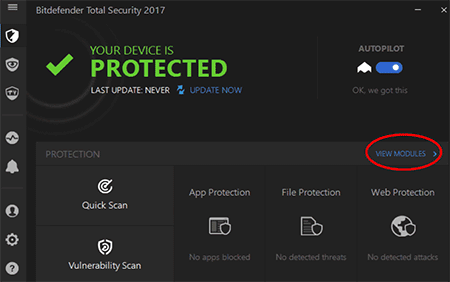
Step 1: Open your Bit Defender user menu and select “View Modules”
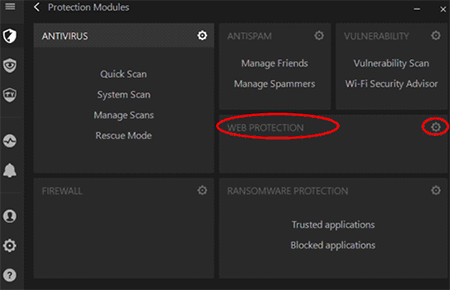
Step 2: Click on the “Settings” button on the right hand corner under “Web Protection”
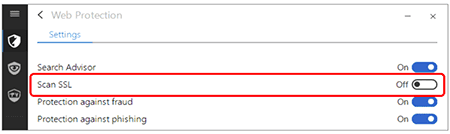
Step 3: Turn off “Scan SSL” by clicking on the icon
Step 4: Relaunch your browser for settings to take effect.
AVG anti-virus software
(a) AVG Resident Shield settings You will need to set up an exception in the AVG Resident Shield settings. If you decided to proceed, please be guided using the following steps:
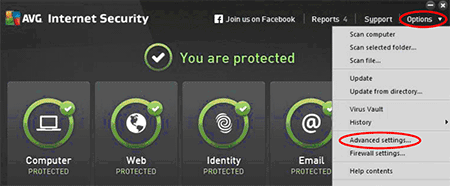
Step 1: Open your AVG program, go to “Options” and select “Advanced settings”
Step 2: Select “Exceptions” located on the left side of the screen, followed by “Add exception”
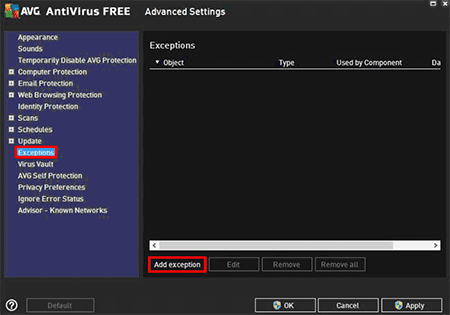
Step 3: Select “URL” under Exception type and enter our URL https://sg.uobkayhian.com and tick on the box below “Use this exception for” :
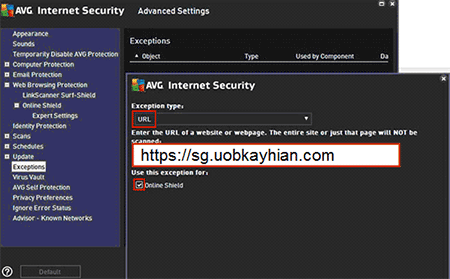
Step 4: Click “OK” to save details of the exception
Step 5: Verify that our URL is added successfully into the exceptions list and click on “Apply” button
(b) AVG LinkScanner / Online Shield
To disable the Web Browsing component, kindly follow the steps below:
Step 1: Open your AVG program, go to “Options” and select “Advanced settings”
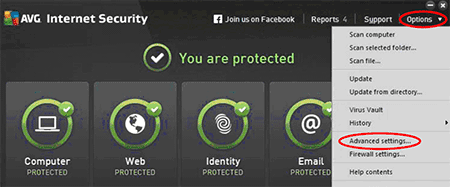
Step 2: Click the Web Browsing component
Step 3: In the LinkScanner Surf-Shield section, click the switch to change it to “Disabled” (red)
Step 4: In the Online Shield section, click the switch to change it to “Disabled” (red)