
Gain timely investment insights on:
By subscribing, you agree to receive research insights and marketing communications from us, and to the terms of our Privacy Policy . You also consent to the collection, use, processing, disclosure and transfer of your personal data for the purposes described in our Privacy Policy . You may unsubscribe at any time.
To ensure that you close the session successfully, you should always log off by clicking “Logout’ on the top right corner before closing the browser.
With the latest browser version, you will have the latest updated security features for that browser.
Internet Explorer
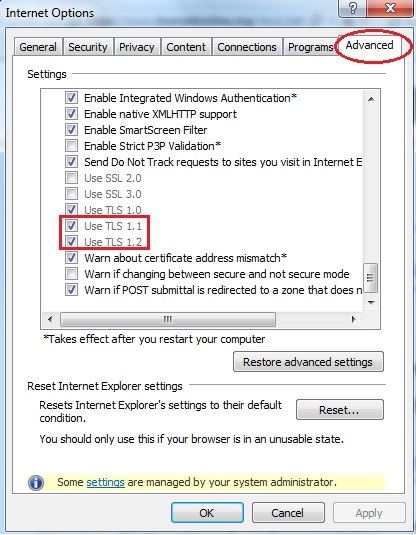
To enable TLS support for IE, please open your IE browser and follow these steps:
Step 1: Select "Tools" >> "Internet Options"
Step 2: Select "Advanced" tab.
Step 3: Tick "TLS1.1" and "TLS1.2"
Step 4: Click on "OK" and save the changes
Mozilla Firefox
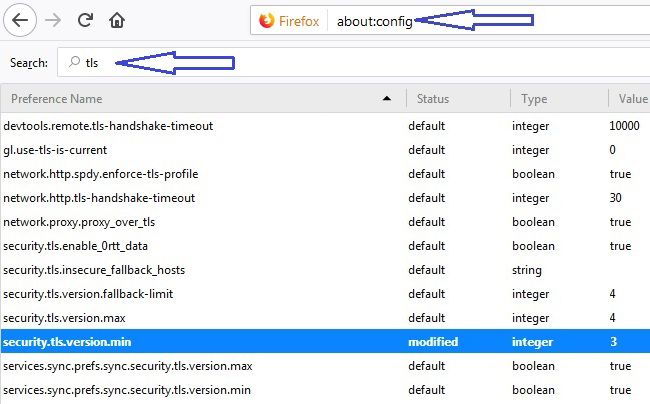
To enable TLS support for Firefox, please open your Firefox browser and follow these steps:
Step 1: In the address bar, type about:config and press Enter
Step 2: In the Search field, enter tls. Find and double-click the entry for security.tls.version.min
Step 3: Set the integer value to 3 to force protocol of TLS 1.3
Step 4: Click on OK
Step 5: Close your browser and restart Mozilla Firefox
Google Chrome
To enable TLS support for Chrome, please open your Chrome browser and follow these steps:
Step 1: Click Alt F and select "Settings"
Step 2: Scroll down and select "Advanced"
Step 3: Scroll down to the "System" section and click on "Open proxy settings"
Step 4: Select "Advanced"
Step 5: Scroll down to "Security" category, check the option box for Use TLS 1.1 and Use TLS 1.2
Apple Safari
If you are using Safari version 7 or greater, TLS 1.1 and TLS 1.2 are automatically enabled
When you login to our UTRADE Trading Platforms, temporary files are stored in your system's cache. You can clear your cache after each session by following these steps:
Step 1: Select "Tools" >> "Internet Options"
Step 2: Select "General" tab.
Step 3: Click on the "Delete Files" button under the Temporary Internet Files.
Step 4: Tick the "Delete all offline content" and click on "OK"
Step 5: Click on "OK" and save the changes
Sharing or using shared or public computers to access UTRADE Trading Platforms is a potential security risk on your part. If you use a shared or public computer, ensure that you disable AutoComplete, log out, and clear your cache after your session.
Be certain that the wireless network has been configured to incorporate network security, including but not limited to, data encryption.
Clients are advised to download our UTRADE app from the official Android/iPhone source respectively at Google Play and Apple App Store.
Always check your order history regularly to ensure that all details are updated and there has been no unauthorized access on your account. Please inform us immediately if you suspect unauthorized access on your account.
Keep us updated on your latest contact details to facilitate us in contacting you when necessary.
You are advised to install and update anti-virus software. Do not install software programs from an unknown source. Certain viruses as well as programs may capture sensitive personal data without your knowledge. You can prevent this by constantly updating your anti-virus software and regularly scanning your system.
To ensure that your online security and account information are not compromised, we recommend that you adopt the following security guidelines:
(a) Please do not select the browser option for storing or retaining user name and password
(b) Password must be kept confidential and not be divulged to anyone.
(c) Password must be memorised and not be recorded anywhere.
(d) Password must be changed regularly, or when there is any suspicion that it has been compromised or impaired.